When migrating emails, having a reliable backup tool is critical to avoid data loss, ensure compliance, and maintain business continuity. This guide explores 10 email backup tools designed to safeguard your data during migrations, highlighting their key features, supported platforms, storage options, and security measures.
Key Takeaways:
- EaseUS Todo Backup Home: User-friendly with automation, encryption, and local/cloud storage. Starts at $39.95/month.
- SysTools Email Backup Wizard: Supports multiple email clients and formats with AES-256 encryption. Prices range from $5 to $49.
- KLS Mail Backup: Free, lightweight tool for desktop email clients and browser profiles.
- MailStore Home: Free, local archive-focused tool for personal use with password protection.
- Handy Backup: Flexible storage options with strong encryption for Windows users. Lifetime licenses start at $39.
- Gmvault Gmail Backup: Open-source, command-line tool for Gmail users. Free.
- SaaS Data Protection Tools: Enterprise-grade solutions for cloud-to-cloud backups with advanced security.
- ZOOK Email Backup: Supports 99+ services and multiple formats. Pricing starts at $99.
- Acronis True Image: Comprehensive system backup with anti-ransomware features. Plans start at $34.99/year.
- Zapmail: Cloud-hosted mailboxes for Google Workspace and Microsoft 365. Starts at $39/month for 10 mailboxes.
Quick Comparison
| Tool | Supported Email Clients | Platform | Storage Options | Encryption | Pricing |
|---|---|---|---|---|---|
| EaseUS Todo Backup Home | Gmail, Outlook | Windows, macOS | Local, Cloud | AES 256-bit | $39.95/month |
| SysTools Backup Wizard | Gmail, Office 365, Yahoo | Windows | Local, Cloud | AES 256-bit | $5–$49/user |
| KLS Mail Backup | Thunderbird, Postbox | Windows | Local, Cloud | Password-protected | Free |
| MailStore Home | Gmail, Outlook, Yahoo | Windows | Local | Password-protected | Free |
| Handy Backup | Gmail, Outlook, IMAP | Windows | Local, Cloud, NAS | AES 128-bit | $39–$249 (lifetime) |
| Gmvault Gmail Backup | Gmail | Windows, macOS, Linux | Local | OAuth2 | Free |
| SaaS Data Protection | Microsoft 365, Gmail | Web-based (all OS) | Cloud-to-cloud | AES 256-bit | Varies |
| ZOOK Email Backup | 99+ services | Windows | Local, Cloud | AES 256-bit | $99–$299 |
| Acronis True Image | Outlook, Microsoft 365 | Windows, macOS | Local, Cloud | AES 256-bit | $34.99/year |
| Zapmail | Gmail, Outlook | Web-based (all OS) | Cloud-hosted | OAuth, SPF/DKIM/DMARC | $39–$299/month |
Choose the tool that aligns with your needs, whether for personal use or large-scale enterprise migrations. Each option offers a unique balance of features, security, and pricing.
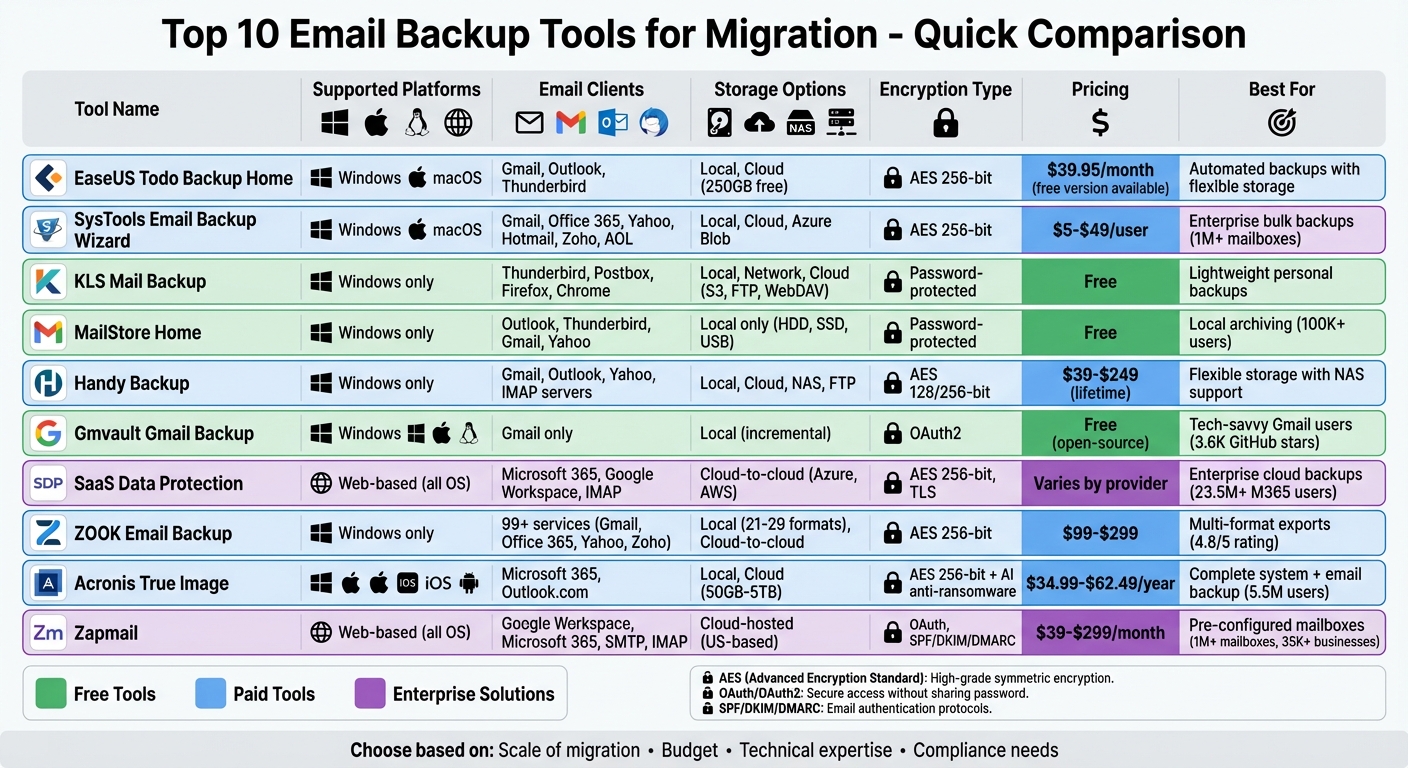
Email Backup Tools Comparison: Features, Pricing & Platform Support
What Features Should an Email Migration Tool Have?
1. EaseUS Todo Backup Home
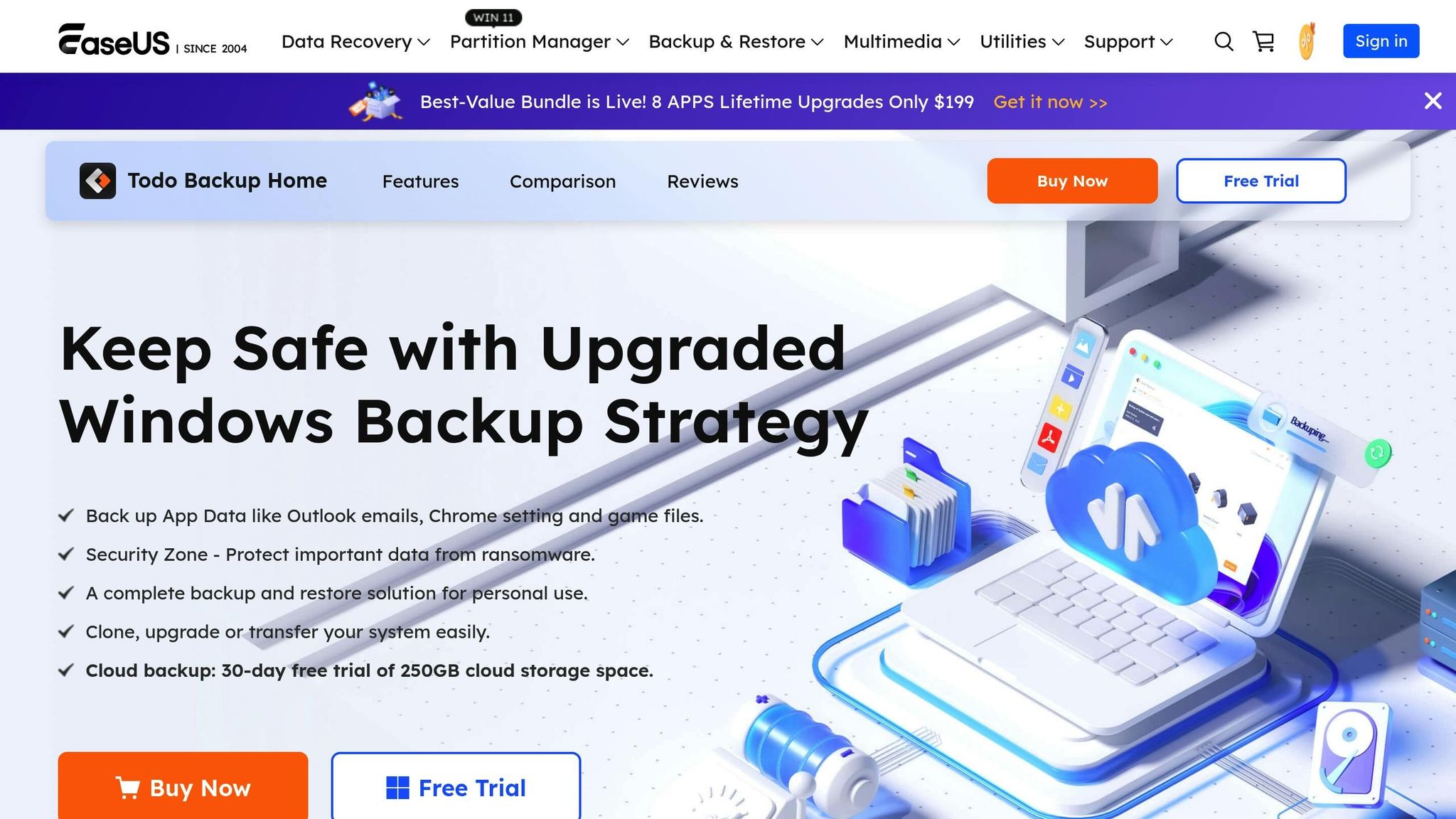
When it comes to email migration, having reliable scheduling, flexible storage options, and strong encryption is non-negotiable. EaseUS Todo Backup Home ticks all these boxes, offering support for Outlook, Gmail, Thunderbird, and Fixmail backups. Since its launch in 2009, it has earned accolades and is trusted by over 20,000 businesses for its reliability and performance.
This software simplifies the backup process with automated schedules. You can set it to perform daily, weekly, or monthly backups using incremental and differential methods, ensuring your data is consistently up to date.
Backup Storage Options (Local/Cloud)
EaseUS Todo Backup Home gives you the freedom to choose where to store your email data. You can save it locally or in the EaseUS cloud, which comes with 250GB of free cloud storage. This storage can hold backups, contacts, and calendars, making your data easily accessible during the migration process.
Data Encryption and Security
Data security is a top priority, and EaseUS delivers with robust encryption features. Backups are password-protected and secured with AES 256-bit encryption, safeguarding your sensitive information during and after the migration process. Additionally, the software allows you to create WinPE bootable disks, which can be a lifesaver if your computer fails to start, enabling you to recover both your system and email data.
Platform Compatibility (Windows/macOS)
EaseUS Todo Backup Home is designed to work seamlessly on various platforms. It supports Windows 11, 10, 8.1, 8, and 7, and there’s also a macOS version available. For those interested, the software is priced at $39.95 per month, but a free version is also available for users with basic backup needs.
"If that seems like too much of a daily hassle… consider a third-party backup program. My current favorite is EaseUS Todo Backup." – PCWorld Staff
2. SysTools Email Backup Wizard
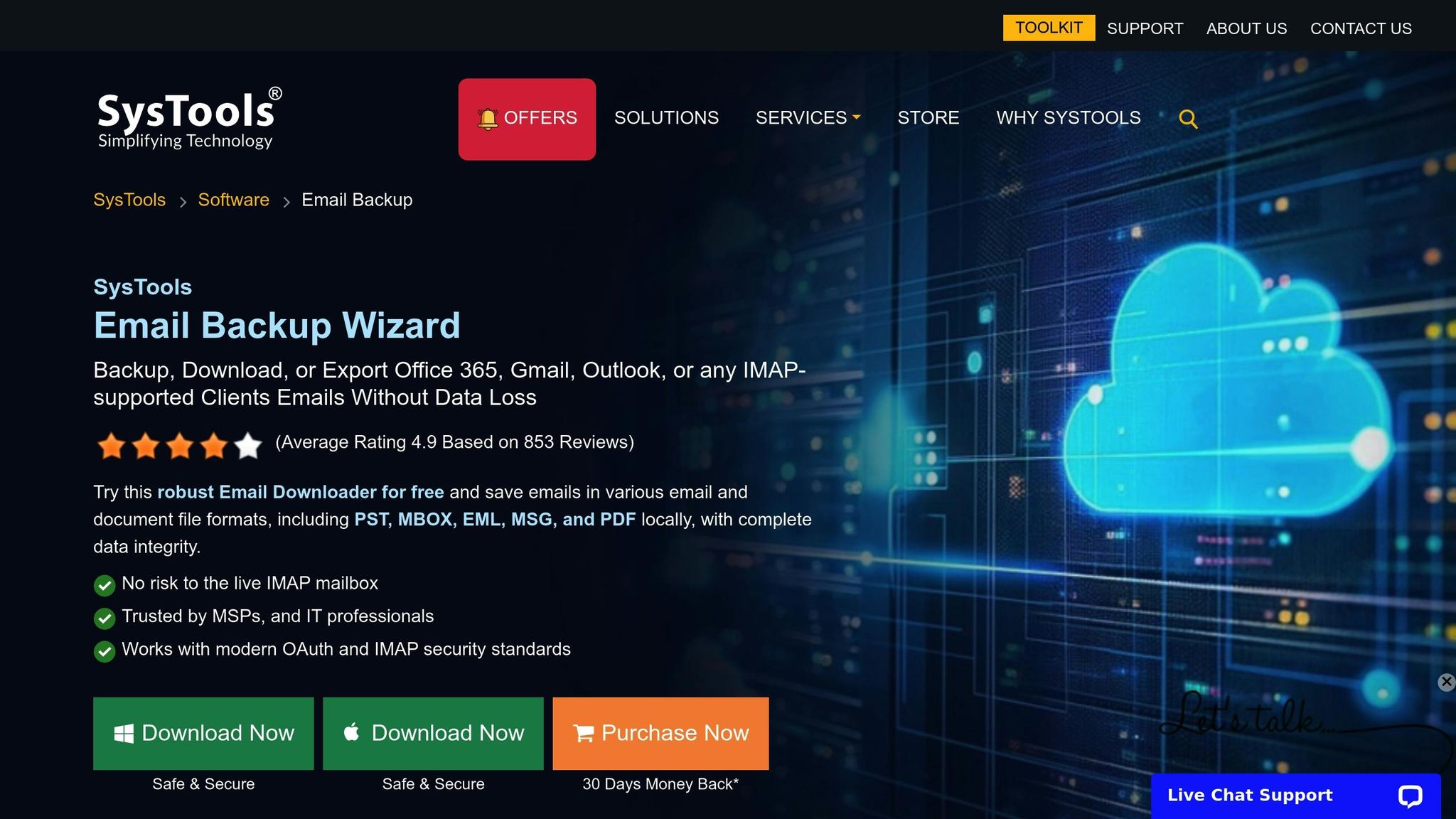
SysTools Email Backup Wizard is a versatile tool designed to simplify email migrations and backups. It supports a wide range of email clients, including Gmail, Office 365 (Microsoft 365), Yahoo Mail, Hotmail, Zoho Mail, AOL, Amazon WorkMail, and G Suite (Google Workspace). For added flexibility, it offers a universal IMAP backup option, enabling users to download emails from any IMAP-enabled server.
With the ability to handle both personal and enterprise needs, this tool has backed up over 1 million mailboxes worldwide and managed data volumes of up to 2 TB.
Supported Email Clients
SysTools provides specialized features for businesses, such as domain-wide "Admin" capabilities for bulk backups. It distinguishes between tools for free personal Gmail accounts and the Google Workspace Backup Tool, which is tailored for business users. The software can scale efficiently, supporting parallel transfers for up to 20 accounts simultaneously.
Backup Storage Options (Local/Cloud)
The tool offers multiple storage options for backups. Users can save their data to local devices like computers, external hard drives, or USB drives. Enterprise users can opt for direct cloud storage, with specific versions supporting Azure Blob storage. Backups can be exported in various formats, including PST, MBOX, EML, PDF, and MSG. Additionally, its Delta Backup feature ensures that only new emails are downloaded after the initial backup, conserving both time and storage space.
"The features of the tool ensure that all my requirements for backup in bulk or selectively, required formats, keeping data safe and structuring the same were all fulfilled." – Jeffery, User, USA
Data Encryption and Security
SysTools prioritizes data security with AES-256 encryption, modern OAuth 2.0 authentication, and compliance with ISO 9001:2015 and ISO 27001:2013 standards. Importantly, the tool does not store user credentials on external servers, ensuring privacy.
Platform Compatibility (Windows/macOS)
The software is compatible with both Windows (Windows 10, 11, and Server 2012/2016/2019/2022) and macOS (from version 10.8 to macOS 15.0 Sequoia). It boasts strong user ratings, with the Microsoft 365 version holding a 4.8/5 score from 2,615 reviews, and the general email backup suite rated 4.4/5 by 152 users. CNET has also given the Microsoft 365 backup software a 5-star rating for its performance. Pricing starts at $5 per user for the standard Email Backup Wizard, with specialized versions ranging from $19 to $49, depending on the email service.
3. KLS Mail Backup
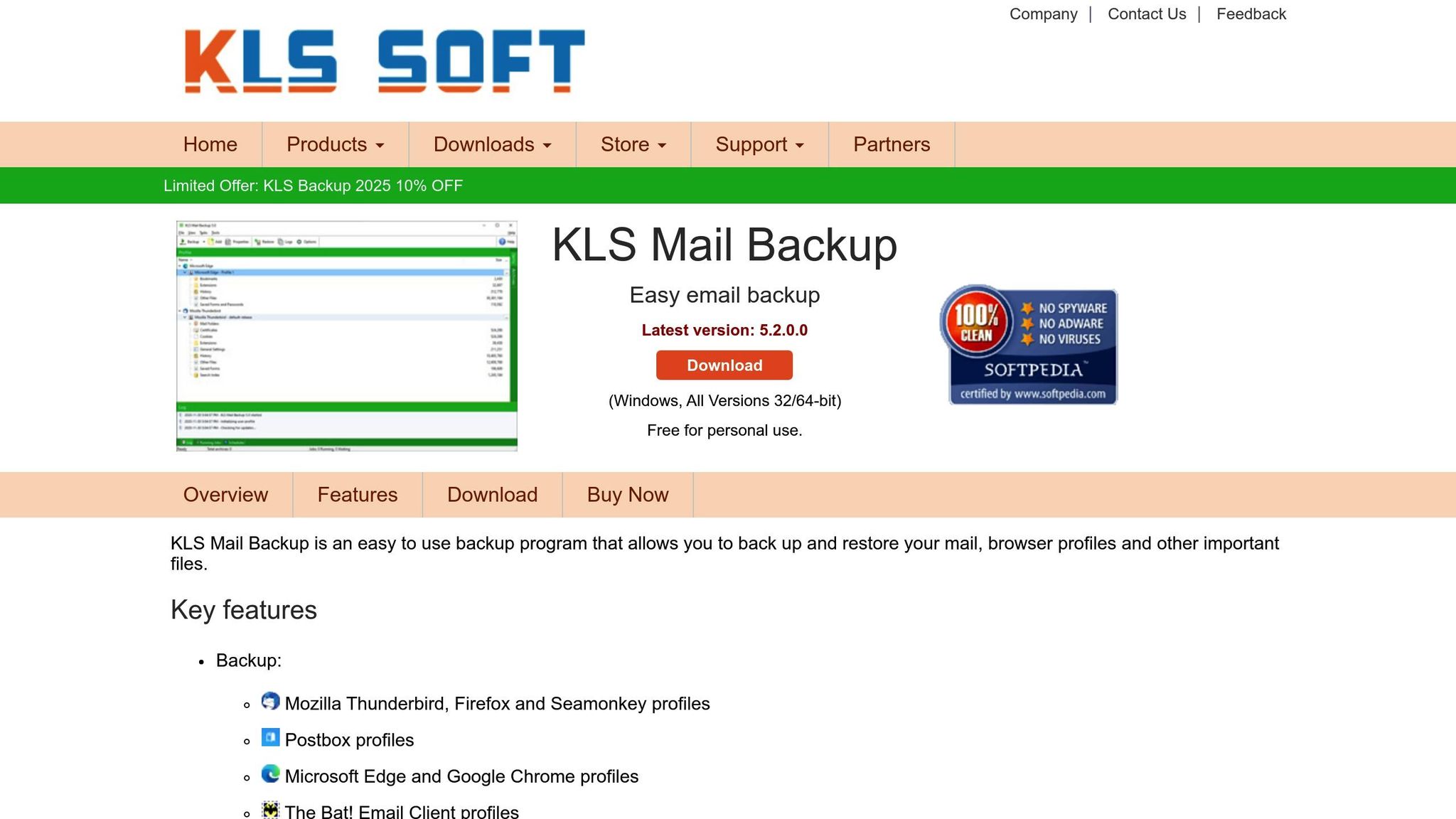
KLS Mail Backup is a simple and free tool designed for personal use, perfect for backing up desktop email clients and browser profiles. As of January 2026, its latest version (5.2.0.0) takes up just 30MB of disk space for installation.
This software supports popular email clients like Mozilla Thunderbird, Postbox, and The Bat! Email Client. It also backs up browser profiles for Firefox, Seamonkey, Microsoft Edge, and Google Chrome, ensuring that browser settings and caches are preserved.
Backup Storage Options (Local/Cloud)
The tool provides flexible storage options, letting users save backups to local drives, network drives, or even cloud-based solutions like Amazon S3, WebDAV, and FTP servers. It uses standard compression formats like Zip and 7z, which also allow for password protection to secure your data.
KLS Mail Backup supports both full backups and incremental backups. After the initial full backup, incremental backups only store changes, saving both time and storage space during regular backup routines.
Platform Compatibility (Windows Only)
This software is compatible with Windows 11, Windows 10, and Windows 7 (available for both 32-bit and 64-bit systems). It also includes a built-in email viewer, which lets you preview messages without needing to fully restore them – a handy feature for checking your data before completing a migration.
4. MailStore Home
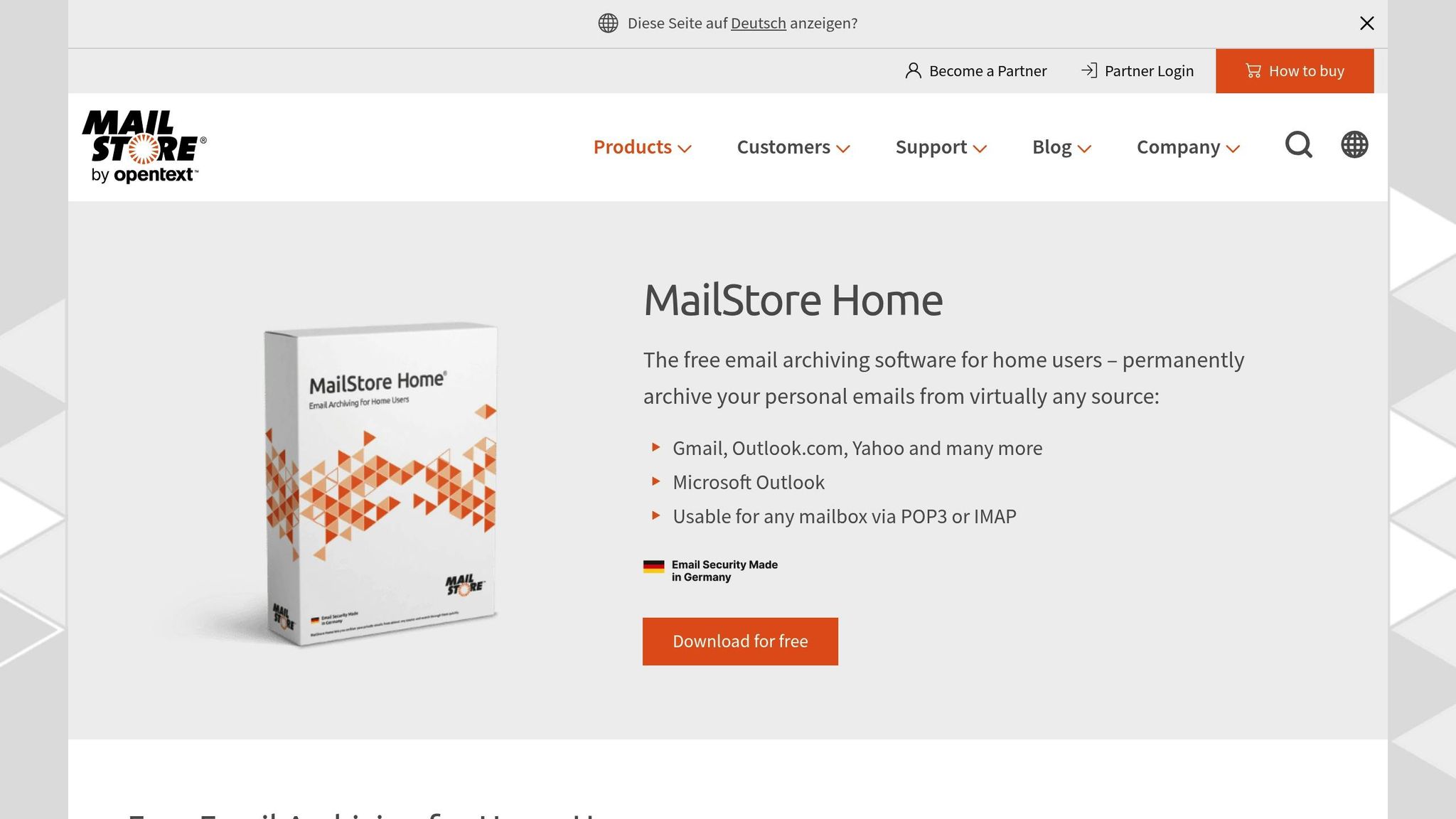
When it comes to migrating emails, safeguarding your data is a top priority. MailStore Home steps in as a reliable solution, offering strong compatibility with various email clients and secure storage options. Developed by German experts in archiving, this free tool has been around since 2006 and is trusted by over 100,000 users worldwide across its product offerings.
Let’s dive into the supported email platforms and storage features.
Supported Email Clients
MailStore Home is compatible with a wide range of email clients, including:
- Microsoft Outlook (2003 through 2019)
- Mozilla Thunderbird
- Mozilla SeaMonkey
- Windows Mail
- Windows Live Mail
It also works seamlessly with major webmail providers like Gmail, Outlook.com, and Yahoo! Mail, as well as any mailbox accessible via POP3 or IMAP protocols.
Backup Storage Options (Local/Cloud)
MailStore Home archives your emails locally, whether on hard drives, SSDs, or external USB drives. For added flexibility, a portable version is available, making it easy to access your archive on the go. Local storage ensures that your data remains readily available during migration – an essential factor for preserving data integrity.
Important Note: Avoid using file hosting services like Dropbox to store MailStore Home backups. These services might access the archive simultaneously with the software, which can corrupt files and make your archive unusable.
Data Encryption and Security
MailStore Home doesn’t just offer flexible storage – it also takes security seriously. You can password-protect your archive, requiring a password each time you open the application. Plus, since all data is stored locally, you retain full control over your information.
"MailStore Home promises to solve two of the biggest problems facing those with email overload: how to find information fast, and how to back up your email data. This centralized email archive does an excellent job of both." – PC World
The software has also earned a 92.1% customer satisfaction rate, reflecting its reliability and user-friendly features.
Platform Compatibility (Windows/macOS)
MailStore Home is designed for Windows 10 and Windows 11, requiring .NET Framework 4.8 or later. However, it does not support macOS. Additionally, users should note that Outlook 2010 32-bit may have limited functionality on 64-bit Windows systems.
5. Handy Backup
Handy Backup is a reliable tool for email migration tailored for Windows users. With prices starting at $39 for a lifetime Standard license, it provides a cost-effective solution for managing your email backups and migrations.
Supported Email Clients
Handy Backup supports a wide range of email platforms through dedicated plugins. It works seamlessly with webmail services like Gmail, Outlook.com, Yahoo Mail, AOL, Zoho Mail, Fastmail, and Zimbra via IMAP. It also handles local email clients such as Microsoft Outlook, Outlook Express, Windows Live Mail, Mozilla Thunderbird, The Bat!, eM Client, and BlueMail. Emails are saved in the .eml format, making server-to-server and local-to-cloud migrations straightforward.
"I backup my mailbox content from seven or eight servers together to my home NAS storage… Handy Backup does it efficiently and conveniently, allowing me not bothering about preserving my emails intact." – Charles Cranwell, Manager
To ensure smooth migrations, enable IMAP access and configure Advanced Mode in the Task Wizard. This setup streamlines the migration process.
Backup Storage Options
Handy Backup offers flexibility in where you can store your backups. Options include:
- Local storage: Internal and external drives, USB devices, NAS, or optical discs.
- Network storage: FTP, SFTP, FTPS, and WebDAV.
- Cloud storage: Services like Amazon S3, Google Drive, Dropbox, and OneDrive.
You can choose from full, incremental, differential, or mixed backup methods, allowing you to maintain version history while saving storage space.
Data Encryption and Security
Security is a priority with Handy Backup. It supports AES-256, AES-128, and 128-bit Blowfish encryption to protect your data. Secure IMAP connections (SSL/TLS or StartTLS) on port 993 ensure safe data transfers. With VSS "Hot Backup", downtime is minimized during backups, and detailed logs keep track of every operation.
Platform Compatibility
Handy Backup is designed exclusively for Windows users. The Professional edition is available for $89, while the Small Business edition costs $249. Both come with lifetime licenses and a 30-day trial period, giving users ample time to explore the tool’s capabilities.
For Windows users looking to safeguard their email data during migration, Handy Backup is a dependable choice that fits into broader email management strategies.
6. Gmvault Gmail Backup
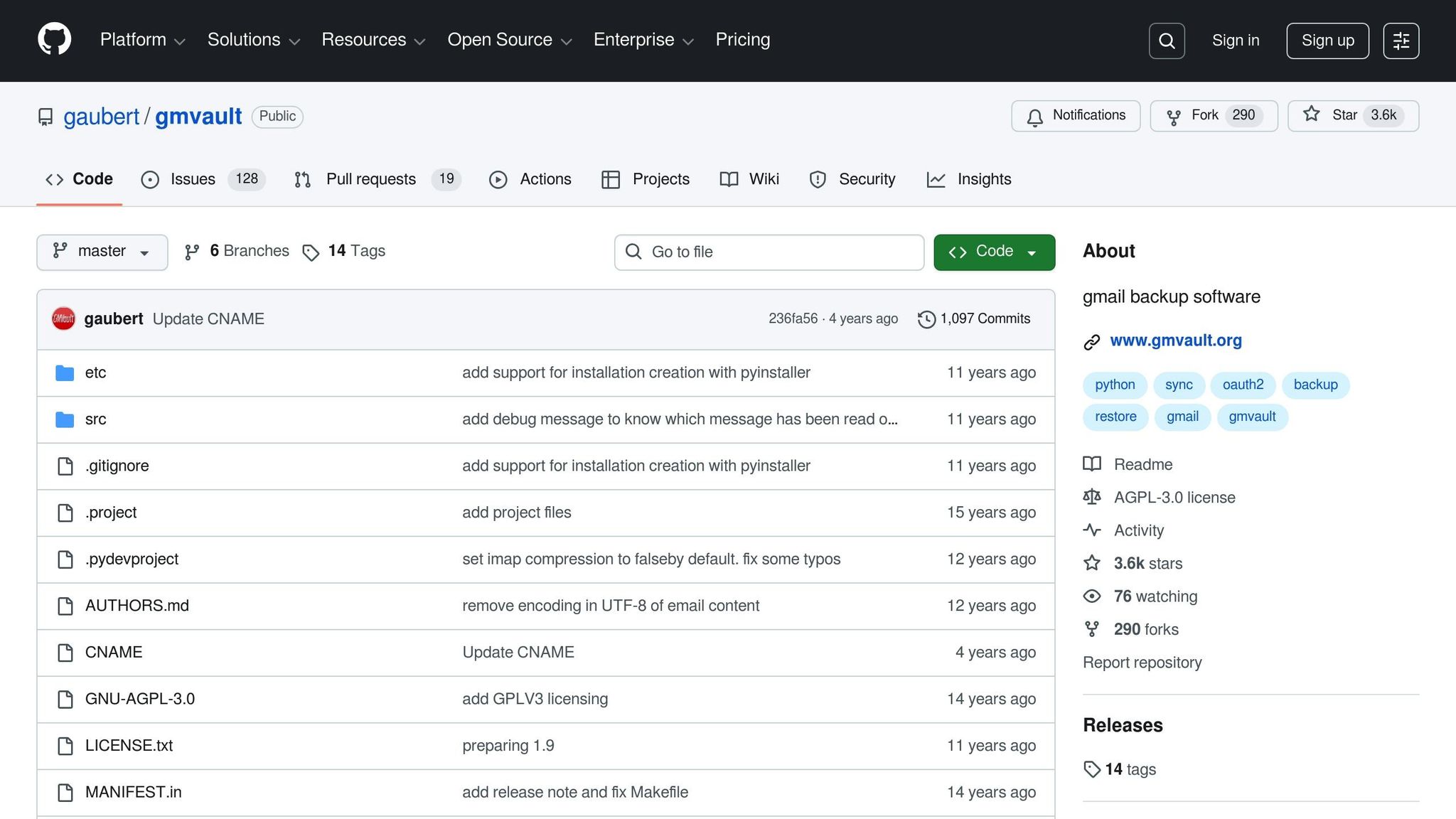
Gmvault is a free, open-source tool designed for Gmail users who prefer a command-line approach to backing up their emails. Licensed under the GNU-AGPL-3.0, it’s a solid choice for tech-savvy individuals who are comfortable with terminal commands and want a no-cost solution for email migration.
Supported Email Clients
This tool is specifically built for Gmail and Google Workspace accounts. It operates as a standalone command-line application, allowing you to back up your Gmail emails locally. Later, these emails can be restored to any Gmail account, making them accessible via standard email clients. Its Gmail-specific design ensures a streamlined experience for users of this platform.
Backup Storage Options
Gmvault saves your email backups locally by default in the $HOME/gmvault-db directory for macOS/Linux or %HOME%/gmvault-db for Windows. If needed, you can change this location by using the -d or --db-dir option. The tool performs a full backup initially and then switches to incremental backups, which helps save both time and bandwidth.
Data Encryption and Security
Security is a priority for Gmvault. It uses XOAuth (OAuth2) authentication, so your Gmail password is never stored by the tool. If you choose the --passwd login method instead, the password is encrypted and stored locally. All authentication tokens and configuration data are securely kept in $HOME/.gmvault. As an open-source project with over 3,600 stars on GitHub, Gmvault is open to public scrutiny, adding an extra layer of trust.
Platform Compatibility
Gmvault works across Windows, macOS, and Linux platforms. Windows users can rely on the gmvault-shell.bat file to set up the command-line environment, while macOS and Linux users can install it using a binary tarball or Python’s pip package manager. Written primarily in Python, it’s a flexible and accessible tool for users across these operating systems.
sbb-itb-36f7bf9
7. SaaS Data Protection
SaaS data protection tools are designed to handle enterprise email backups using cloud-to-cloud solutions. These platforms automatically back up email data from services like Microsoft 365 and Google Workspace, storing it securely in the cloud. They also support a variety of email clients, which we’ll explore below.
Supported Email Clients
SaaS backup tools offer continuous, automated protection, which is especially useful during email migrations. They primarily support major platforms like Microsoft 365 (including Exchange Online, Teams, SharePoint, and OneDrive) and Google Workspace (Gmail, Drive, Contacts, and Calendars). Many of these tools also work with IMAP-based email providers such as Yahoo Mail, Zoho Mail, iCloud, and AOL. Some enterprise-grade solutions even extend support to older platforms like Lotus Notes, IBM GroupWise, Zimbra, and on-premise Exchange servers. For instance, Veeam currently safeguards over 23.5 million Microsoft 365 users, including their identity data such as Microsoft Entra ID users, groups, and application registrations.
Backup Storage Options
Most SaaS protection solutions rely on cloud-to-cloud backup, storing data in managed environments like Azure or AWS. Veeam Data Cloud, for example, offers the flexibility to select from 17 different Azure regions, ensuring compliance with data sovereignty requirements. This separation of backups ensures they remain accessible even during Microsoft 365 outages.
"ServiceNow, like many enterprise companies, needed high-performance backup and restore solutions for Microsoft 365. We’re excited to have found the solution with Veeam, using their Data Cloud built on Microsoft Azure." – Sankha Nagchoudhury, SVP, Digital Technology Solutions, ServiceNow
Most platforms provide unlimited storage, typically included in per-user pricing. Additionally, immutable storage ensures ransomware cannot alter or delete backups.
Data Encryption and Security
Top-tier SaaS tools use 256-bit AES encryption to secure data at rest and TLS protocols for data in transit. Common security features include multi-factor authentication (MFA) and role-based access controls (RBAC). Some providers also offer zero-knowledge encryption, meaning only you have access to the decryption key. To ensure data integrity, tools use SHA-256 checksums to verify that migrated files remain identical to the originals. By 2028, it’s projected that 75% of enterprises will prioritize backing up their SaaS applications.
Platform Compatibility
Most SaaS backup tools feature web-based management consoles, making them accessible on Windows, macOS, or Linux through any browser. Some, like SysInfo, also provide dedicated desktop applications for Windows and macOS. Veeam reports impressive performance, with backup and restore speeds reaching 3–5TB per hour in large Microsoft 365 setups. These tools are designed to integrate smoothly into existing IT infrastructures, ensuring minimal disruption and maximum efficiency.
8. ZOOK Email Backup
When it comes to safeguarding email data during migrations, ZOOK Email Backup offers a dependable solution tailored for a wide range of platforms. This Windows-based software supports backups from over 99 email services, including well-known providers like Gmail, Office 365, Outlook.com, Yahoo Mail, and Zoho Mail. It also works seamlessly with ISP and web hosting accounts such as GoDaddy, BlueHost, HostGator, Comcast, and Rackspace. With an impressive 4.8/5 rating from 1,344 customer reviews, it’s praised for its ease of use and reliable performance. Its extensive compatibility ensures smooth backups across various email systems.
Supported Email Clients
ZOOK Email Backup is designed to handle a diverse range of email services. Whether you’re using Gmail, Office 365, Outlook.com, Yahoo Mail, Zoho Mail, or an IMAP server from an ISP or web hosting account, this tool has you covered. The IMAP backup feature simplifies the process by automatically detecting port numbers and hostnames, ensuring that emails retain their original folder structure and properties during the backup process [50,51].
Backup Storage Options
This tool offers remarkable flexibility for storing email data. You can save backups locally to your hard drive, desktop, or external storage in formats like PST, MBOX, EML, MSG, PDF, HTML, DOC, CSV, and more. The Standard License provides 21 saving options, while the Enterprise License expands that to 29. For users seeking cloud-based solutions, ZOOK Email Backup supports direct cloud-to-cloud migrations, enabling seamless transfers between services like Office 365, Gmail, G Suite, Yahoo Mail, and Amazon WorkMail – all while maintaining data integrity. Pricing includes a Standard License at $99 for two computers and an Enterprise License at $299 for ten computers. A free trial is also available, allowing users to export up to 25 items per folder [50,51].
Platform Compatibility
ZOOK Email Backup is built for Windows systems, supporting versions from Windows XP to Windows 11 (both 32- and 64-bit) and Windows Server editions from 2008 to 2019. The software requires a minimum of 2 GB of RAM and approximately 100 MB of free hard disk space to run efficiently. While there isn’t a native macOS version, the software can export emails to Mac-compatible formats like EMLX and MBOX, making it easy to transfer data to Apple devices when needed [50,55].
9. Acronis True Image
Acronis True Image delivers a complete system backup solution combined with email protection. With over 5.5 million users relying on it daily, the software integrates advanced cybersecurity features like real-time anti-ransomware and cryptojacking defenses. Its threat database updates every five minutes to counter new risks, making it a solid option for safeguarding emails during migration.
Supported Email Clients
Acronis True Image is tailored to the Microsoft ecosystem, offering seamless cloud-to-cloud backup for Microsoft 365 accounts and Outlook.com. It backs up emails, attachments, contacts, and calendars from these platforms. Users can restore entire mailboxes or retrieve specific emails, attachments, or folders – perfect for recovering individual messages after migration. This focus on Microsoft services ensures email integrity remains intact during transitions.
Backup Storage Options
The software supports both local and cloud storage. You can back up data to external hard drives, network-attached storage (NAS), or network shares for on-site access. For off-site backups, the Acronis Cloud offers storage plans ranging from 50GB to 5TB, depending on your subscription. Supporting both local and cloud backups ensures adherence to the 3-2-1 rule.
Data Encryption and Security
With enterprise-grade AES-256 encryption, Acronis True Image secures your data whether it’s stored locally, in transit, or in the cloud. End-to-end encryption ensures only you have access to your information. The software’s AI-based Active Protection actively monitors and blocks ransomware or cryptojacking attempts, with automatic recovery for affected files. For U.S. users, Advanced and Premium plans include up to $1 million in cyber insurance coverage. These robust security features make it a dependable choice for critical migration tasks.
Platform Compatibility
Acronis True Image is compatible with Windows 10/11, macOS (Tahoe 26, Sequoia 15, Sonoma 14, Ventura 13, Monterey 12), and mobile devices running iOS 15+ or Android 10+. Pricing starts at $34.99/year for the Essentials plan (local backup only), $43.79/year for the Advanced plan (which includes 50GB–500GB of cloud storage and Microsoft 365 backups), and $62.49/year for the Premium plan (offering 1TB–5TB of cloud storage). These prices are valid until January 14, 2026. The flexible pricing tiers cater to a variety of migration needs.
PCWorld named Acronis True Image the "Best Windows backup software", with Jon L. Jacobi stating:
"Acronis True Image is indisputably the most comprehensive solution when it comes to backup and computer security for Windows PCs."
10. Zapmail
Among the top tools for email backup, Zapmail stands out by offering preconfigured, cloud-hosted mailboxes for both Google Workspace and Microsoft 365. With over 1,000,000 mailboxes and 330,000 domains under its management across 35,000+ businesses, Zapmail prioritizes preserving email integrity and ensuring smooth deliverability during migrations.
Supported Email Clients
Zapmail is designed to work seamlessly with Google Workspace (including Gmail) and Microsoft 365 (including Outlook) mailboxes. It also supports SMTP and IMAP, making it versatile for various setups. Additionally, the platform integrates with more than 50 outreach tools, allowing users to manage email data across different platforms using its bulk export feature.
Backup Storage Options
As a cloud-based SaaS solution, Zapmail operates on US-based IP infrastructure, hosting all mailboxes within its dedicated cloud environment. Each workspace is isolated with a unique domain and full admin access, reducing the risk of cross-account issues during migration. Setting up a mailbox typically takes just 5 to 10 minutes, making it a quick and efficient option.
Data Encryption and Security
Zapmail ensures secure and automated mailbox connections using OAuth, eliminating the need to share SMTP credentials or rely on manual app passwords. Its ZapShield layer, combined with automated DNS configuration for SPF, DKIM, and DMARC, protects migrated data from spoofing and ensures authentication. Enoch Chang, Co-Founder of Cymate, highlighted the platform’s reliability:
"One of the few providers that spins up 1 US-based Google Workspace per domain… zero human error, all done by software."
Platform Compatibility and Pricing
Zapmail’s web-based interface works on any operating system with a modern browser, including Windows, macOS, and Linux. Pricing starts at $39 per month for 10 mailboxes, with additional mailboxes costing $3.50 each. For larger needs, plans include $99 per month for 30 mailboxes (additional at $3.25 each) and $299 per month for 100 mailboxes (additional at $3.00 each). With its focus on easy setup and strong security, Zapmail has earned a 4.5 out of 5 rating on Trustpilot.
Tool Comparison Table
When it comes to picking the right backup tool, your choice often hinges on factors like email client compatibility, platform support, storage options, and security features. Below is a detailed comparison table to help you zero in on the tool that fits your email migration and backup needs.
MailStore Home stands out for its broad support, working with Gmail, Outlook, Yahoo, Thunderbird, Mailbird, and eMClient across both Windows and macOS. ZOOK Email Backup, on the other hand, supports over 85 email types, including Webmail, cPanel, and various cloud-based services.
For those needing cross-platform functionality, Gmvault Gmail Backup operates on Windows, Mac, and Linux but requires some command-line know-how. Meanwhile, EaseUS Todo Backup Home supports both Windows and Mac, and SysTools Email Backup Wizard is tailored for Windows users.
Here’s how these tools stack up:
| Tool | Supported Email Clients for Migration | Platform Compatibility | Storage Options | Encryption | Pricing |
|---|---|---|---|---|---|
| EaseUS Todo Backup Home | Gmail, Outlook | Windows, Mac | Local, Cloud, NAS | Password-protected | Free version available |
| SysTools Email Backup Wizard | Gmail, Hotmail | Windows | Local formats | AES-256 | $19–$24 |
| KLS Mail Backup | Gmail, Outlook, Hotmail, Thunderbird | Windows | Local, incremental | Yes | $19.98–$134.95 |
| MailStore Home | Gmail, Outlook, Yahoo, Thunderbird, Mailbird, eMClient | Windows, Mac | Local archive, USB portable | Password-protected | Free |
| Handy Backup | Gmail, Outlook, Thunderbird, eMClient | Windows | Local, Cloud, FTP | AES-128 | $39–$448 |
| Gmvault Gmail Backup | Gmail only | Windows, Mac, Linux | Local | OAuth2 | Free |
| ZOOK Email Backup | 85+ types (Webmail, cPanel, Gmail) | Windows | Cloud-to-cloud, local | AES-256 | $99 |
| Acronis True Image | Outlook | Windows, Mac | Local, cloud | AES-256 | Varies |
| Zapmail | Gmail, Outlook, SMTP, IMAP | Web-based (all OS) | Cloud-hosted | OAuth, SPF/DKIM/DMARC | $39–$299/month |
A few highlights: Zapmail integrates OAuth authorization and automated DNS settings for SPF, DKIM, and DMARC. Handy Backup provides remote backup options secured with AES-128 encryption.
This table serves as a quick reference to help you identify the tool that aligns best with your specific backup or migration needs.
Conclusion
Choosing the right email backup tool boils down to three main considerations: the scale of your migration, your budget, and the level of technical complexity you’re prepared to handle.
For personal Gmail accounts or small-scale use, tools like MailStore Home are a solid choice for local backups. However, if you’re dealing with larger mailbox volumes, strict compliance requirements, or the need to preserve detailed metadata, you’ll need a more advanced solution. The right choice here doesn’t just ensure data integrity – it also safeguards compliance and keeps operations running smoothly during migration.
As Michael Muchmore, Principal Writer at PCMag, aptly puts it: "There are two kinds of people: those who back up their data and those who haven’t yet suffered a data loss".
On-premises solutions, such as Aid4Mail, are ideal for organizations needing to retain data within their infrastructure to meet regulations like GDPR or HIPAA. Meanwhile, cloud-based options like Sync.com offer zero-knowledge encryption for added security. For teams managing email outreach campaigns alongside migration, Zapmail provides pre-warmed mailboxes, automated DNS setup (SPF, DKIM, DMARC), and integrations with over 50 outreach platforms – all starting at $39/month for 10 Google mailboxes. Testing is an essential step in any backup strategy.
Make sure to pilot test one or two accounts to confirm that folder structures, read statuses, and attachments transfer correctly. Keep the original accounts active until you’ve verified everything is in place.
FAQs
What should I look for in an email backup tool during migration?
When selecting an email backup tool for migration, the first step is deciding if you need a one-time backup or a recurring backup solution. One-time backups work well for single migrations, while recurring backups provide ongoing data protection and make future restores much easier.
Next, think about where your backups will be stored – locally, in the cloud, or a combination of both. A hybrid setup can be a smart choice, offering extra security against hardware failures and potential cloud outages. Make sure the tool can back up everything you need, including emails, contacts, calendars, and metadata like folder structures and labels.
Don’t overlook security and compatibility. Opt for tools that provide strong encryption to keep your data safe and ensure they work with your platforms, such as Google Workspace or Microsoft 365. Lastly, review the tool’s pricing, scalability, and user-friendliness. Pick a solution that fits your budget, handles large mailboxes without issues, and provides solid support to ensure a smooth migration process.
How do email backup tools protect your data during migration?
Email backup tools are designed with multiple layers of security to safeguard your data during migration. They rely on encryption both during transfer and while stored – using protocols like TLS/SSL for secure transmission and AES-256 to protect data at rest. This ensures that sensitive information stays safe from interception or unauthorized access. Additional security features often include multi-factor authentication, role-based access controls, and audit logs to track activity and flag any unusual behavior.
To minimize the risk of data loss, many tools adopt the "3-2-1" backup approach: keeping three copies of your data, stored on two different types of media, with one copy located off-site or in a separate cloud. Some platforms, such as Zapmail, go a step further by isolating data in dedicated, pre-warmed mailboxes and managing DNS within a controlled environment. This approach helps reduce the chances of cross-tenant data leaks.
These combined measures work to keep your email data secure, recoverable, and protected against potential threats during the migration process.
Can these tools handle both personal and business email migrations?
Most email backup tools are built to handle everything from personal email transfers to large-scale business migrations. They come equipped with features tailored for individual users and organizations managing multiple accounts or intricate setups.
It’s important to review the tool’s compatibility and scalability to ensure it aligns with your needs – whether you’re moving a single account or transitioning an entire enterprise workspace.