When you send an email, the recipient’s server responds with an SMTP code – a three-digit number that tells you if your email was delivered, delayed, or rejected. These codes are essential for diagnosing delivery issues and protecting your sender reputation.
Key Takeaways:
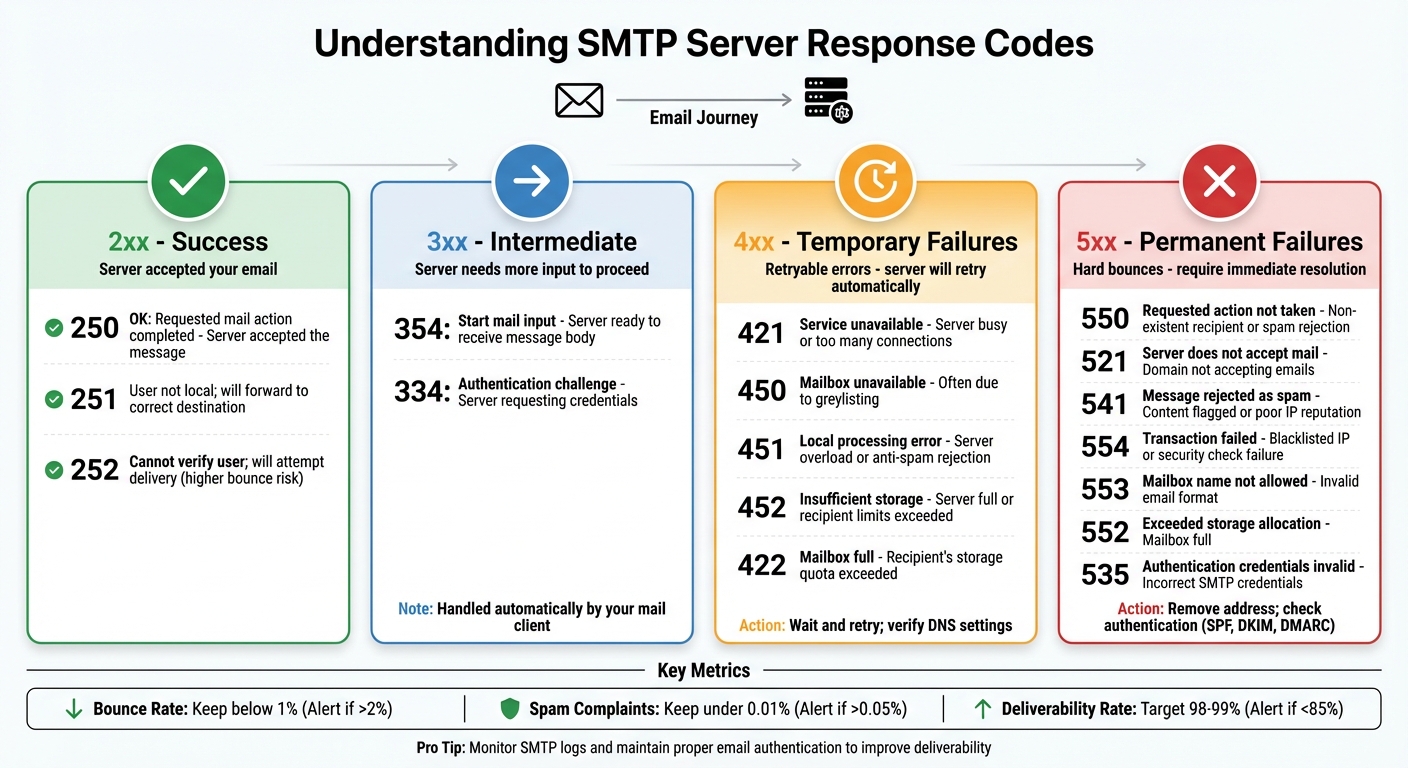
- 2xx Codes: Success. The server accepted your email.
- 3xx Codes: Intermediate. The server needs more input to proceed.
- 4xx Codes: Temporary Failures. These errors are retryable.
- 5xx Codes: Permanent Failures. These indicate hard bounces and require immediate resolution.
Why It Matters:
- Temporary Errors (4xx): Often caused by server overload or anti-spam measures. Your server will retry automatically, but persistent issues may need attention.
- Permanent Errors (5xx): Signal problems like invalid addresses, blacklisting, or failed authentication. Ignoring these can harm your reputation.
Tracking these codes in your SMTP logs and ensuring proper email authentication (SPF, DKIM, DMARC) can improve deliverability. Tools like Zapmail can further optimize your email campaigns by managing DNS records, pre-warming mailboxes, and analyzing performance metrics.
Pro Tip: Keep your bounce rate below 1% and spam complaints under 0.01% to maintain a strong sender reputation.
SMTP Response Codes Guide: 2xx, 3xx, 4xx, and 5xx Error Categories
How to analyze Email Server issues //troubleshooting
2xx and 3xx Server Responses
When your email reaches the recipient’s server, 2xx and 3xx codes provide important clues about its progress.
2xx codes confirm that the server has successfully processed your request. On the other hand, 3xx codes indicate that the server is ready for the next step but requires additional input to continue.
Grasping the distinction between these codes helps you monitor your email’s journey and assess whether it’s truly on its way to the recipient’s inbox.
Common 2xx Success Responses
The standout 2xx code is 250 OK, which means the recipient’s server has accepted your email for delivery. This is the clearest sign of a successful handoff.
However, keep in mind: 250 only confirms that the server has accepted responsibility for the message – it doesn’t guarantee it will reach the inbox. The email might still undergo queuing, filtering, or scanning before final delivery.
Other notable 2xx codes include:
- 251: Indicates the recipient isn’t local to the server, but the message will be forwarded to the correct destination.
- 252: Shows the server accepted the message without verifying the recipient’s mailbox, which increases the chances of a bounce later on.
| Code | Meaning | Impact on Deliverability |
|---|---|---|
| 250 | Requested mail action completed | Server accepted the message; formal handoff is complete |
| 251 | User not local; will forward | The message will be routed to the appropriate external server |
| 252 | Cannot verify user; will attempt delivery | Accepted, but with higher risk of bouncing later |
While 2xx codes confirm the server has taken responsibility for your email, 3xx codes guide the next steps in the delivery process.
3xx Redirection Responses
Unlike 2xx codes, 3xx codes act as checkpoints during the SMTP conversation rather than confirming final success or failure.
A key 3xx code is 354, which means "Start mail input". After your mail client issues the DATA command, the server responds with 354 to indicate it’s ready to receive the message body. This process is typically handled automatically by your mail client.
Another common 3xx code is 334, which appears during authentication. This code signals a challenge from the server, requesting your credentials – usually encoded in Base64. If you frequently encounter 334, it’s worth checking that your SMTP client is properly configured to meet the recipient server’s authentication requirements.
Since your MTA (Mail Transfer Agent) manages 3xx codes automatically, reviewing logs can provide a clearer picture of the entire delivery process.
4xx Temporary Failure Responses
A 4xx code indicates a temporary issue preventing email delivery. These errors, known as Transient Negative Completion Replies, mean the server couldn’t process your email at that moment, but the problem isn’t permanent. In most cases, your mail server will automatically retry sending the email.
Unlike 5xx errors, which signal a permanent failure, 4xx errors suggest that delivery might succeed if attempted again later. These errors often occur when the recipient server is overwhelmed, undergoing maintenance, or using anti-spam measures like greylisting.
Common 4xx Response Codes
One of the most frequent codes is 421 (Service unavailable). This error typically happens when the recipient server is too busy, under maintenance, or handling too many connections from your IP. In such cases, your outgoing server will usually pause and retry.
A 450 (Mailbox unavailable) error is often linked to greylisting. This anti-spam technique temporarily rejects emails from unknown senders. Legitimate mail servers bypass this by retrying automatically.
The 452 error occurs when the recipient server is overloaded or has reached its recipient limits. This can happen if you’re sending large volumes of emails or if the server is running low on disk space. To address this, try breaking large mailing lists into smaller groups.
Other important 4xx codes include 422 (Mailbox full), which means the recipient’s storage quota has been exceeded, and 451 (Local processing error), which points to server overload or rejection by anti-spam filters.
Below are some practical fixes for these temporary errors.
How to Fix Temporary Failures
Most of the time, your mail server will automatically retry these errors. However, if they persist, you may need to tweak your email setup.
Start by verifying your DNS settings, especially your PTR record, and ensure your SPF, DKIM, and DMARC configurations are correct.
If you’re encountering repeated 421 or 452 errors, it could mean your sending speed is too high. Try segmenting large mailing lists into smaller batches and reducing simultaneous SMTP connections (many servers limit these to around 10 per IP).
Another way to minimize 4xx failures is by using pre-warmed mailboxes, like those offered by Zapmail. Pre-warming gradually builds your sender reputation by starting with low email volumes and increasing them over time. This process can help you achieve up to 97% deliverability.
4xx Response Code Reference Table
| Code | Meaning | Common Causes | Resolution Steps |
|---|---|---|---|
| 421 | Service unavailable | Server busy, maintenance, or too many connections | Wait and retry; reduce simultaneous connections |
| 450 | Mailbox unavailable | Greylisting, busy mailbox, or missing PTR record | Verify PTR record; automatic retry usually resolves it |
| 451 | Local processing error | Server overload or anti-spam rejection | Retry later; check email content for spam triggers |
| 452 | Insufficient storage | Server full or recipient limits exceeded | Break emails into smaller batches; retry later |
| 422 | Mailbox full | Recipient’s storage quota exceeded | Ask the recipient to clear space |
| 431 | Out of memory | Disk or memory exhaustion | Send smaller email sets instead of one large batch |
| 441 | Server not responding | Recipient’s server temporarily down | Automatic retry typically resolves the issue |
| 471 | Anti-spam filter error | Local anti-spam software blocked the email | Adjust email content; contact the recipient’s admin if needed |
sbb-itb-36f7bf9
5xx Permanent Failure Responses
Once you’ve tackled temporary email failures, it’s essential to focus on permanent errors, which are flagged by 5xx response codes. These codes signal a hard bounce, meaning the recipient’s server has permanently rejected your email. The root cause could be anything from an invalid email address to failed authentication or even your message being flagged as spam. To resolve these issues, you’ll need to address the underlying problem before attempting to resend.
"A 553 or 554 SMTP error indicates an email could not be delivered due to a permanent problem. You should not retry sending an email that comes back with a 5xx error." – Yahoo
Common 5xx Response Codes
- 550 (Requested action not taken): This typically means the recipient doesn’t exist, your email was flagged as spam, or there was an SPF/DMARC failure.
- 521 (Server does not accept mail): The recipient’s domain isn’t accepting emails, often due to inactive or "no-reply" domains.
- 541 (Message rejected as spam): Filters flagged your email as spam, often due to poor IP reputation or problematic content.
- 554 (Transaction failed): Indicates your sending IP may be blacklisted or your message failed security checks. Look for enhanced status codes like 5.7.1 for more details.
- 553 (Mailbox name not allowed): Points to issues with the email format or unauthorized sender credentials.
- 552 (Exceeded storage allocation): The recipient’s mailbox is full.
- 500 (Syntax error, command unrecognized): Caused by malformed SMTP commands.
- 535 (Authentication credentials invalid): Indicates incorrect SMTP relay credentials.
Permanent errors like these demand immediate attention, as they can severely harm your email deliverability and sender reputation.
How Permanent Failures Affect Deliverability
Permanent 5xx errors don’t just block individual emails – they can have a ripple effect on your sender reputation. For instance, they signal poor list management to ISPs, which could lead to your domain or IP being blacklisted.
"SMTP codes are specific protocol responses to signal the state of a transmission. For marketing professionals, they help improve deliverability and protect their sender reputation because certain codes can indicate a blacklisting." – Nicolas, Digital Marketing Expert, CaptainVerify
Authentication failures – such as those caused by failed SPF, DKIM, or DMARC checks – can make your email appear forged, resulting in immediate rejections. Retrying emails after a 5xx error without fixing the issue can worsen the problem, further damaging your reputation. Instead, focus on identifying and resolving the root cause before making another attempt.
To safeguard your deliverability, list managers should implement strict policies for handling hard bounces. Removing email addresses associated with 5xx errors helps maintain a clean list and protects your sender reputation.
5xx Response Code Reference Table
| Code | Meaning | Common Causes | Resolution Steps |
|---|---|---|---|
| 550 | Requested action not taken | Non-existent recipient; spam rejection; SPF/DMARC failure | Remove the address; check for typos; verify DNS authentication records |
| 521 | Server does not accept mail | Recipient domain not accepting mail | Confirm if the domain is active or marked as "no-reply" |
| 541 | Message rejected as spam | Content flagged; poor IP reputation | Remove spam triggers; check IP status on blocklists |
| 553 | Mailbox name not allowed | Invalid email format; unauthorized sender | Verify email format and sender authorization |
| 554 | Transaction failed | Blacklisted sending IP; security check failure | Check IP reputation; review message for spam or viruses |
| 552 | Exceeded storage allocation | Recipient’s mailbox is full | Contact recipient via alternative means or reduce attachment sizes |
| 500 | Syntax error, command unrecognized | Malformed SMTP command | Ensure SMTP client configuration complies with RFC standards |
| 535 | Authentication credentials invalid | Incorrect SMTP relay credentials | Update credentials with the correct username and password |
How to Improve Email Deliverability
Now that you’ve got a handle on server response codes, it’s time to turn that knowledge into action. Improving email deliverability isn’t just about fixing problems after they arise – it’s about putting systems in place to prevent issues from happening in the first place. This involves keeping a close watch on server logs, setting up proper authentication protocols, and using smart tools to ensure your emails reach their destination.
Monitoring Server Response Logs
SMTP logs are like a window into your email system’s health. They show you why emails are delivered, rejected, or bounced. Whether you’re using servers like Microsoft Exchange or Postfix, or cloud services like Amazon SES, tools like AWS CloudWatch make these logs accessible. It’s essential to monitor everything – not just successful deliveries, but also failures and rejections.
To make sense of the data, SMTP log analyzers like Splunk, Graylog, or AWStats can help by filtering out unnecessary details and highlighting key insights. For instance, if Gmail bounces are significantly higher than other providers – say 15% compared to 2% elsewhere – it’s a clear sign of a reputation issue with Gmail.
"If your emails don’t deliver and land in the spam folder, your chances of connecting with potential customers drop to zero." – Margaret Sikora, Woodpecker
Timing patterns in your logs can also reveal problems. For example, delays between connection and acceptance often point to greylisting, where a server temporarily slows down unknown senders to confirm they’re legitimate. Additionally, diagnostic messages like "Message rejected due to local policy" can provide clues about what’s going wrong.
The numbers back up the importance of paying attention here: 44% of businesses report increases in hard bounces, and a bounce rate over 10% demands immediate attention. On the flip side, maintaining clean email lists can improve open rates by as much as 20% – making log monitoring a key part of protecting your sender reputation.
Use these insights to refine your email authentication setup.
Setting Up Email Authentication
Armed with log data, the next step is to ensure your email authentication protocols are strong. Authentication tools like SPF, DKIM, and DMARC play a crucial role:
- SPF specifies which servers are allowed to send emails for your domain.
- DKIM verifies that the message hasn’t been tampered with.
- DMARC enforces policies and provides guidance on handling authentication failures.
These protocols help prevent common errors like 550, 551, and 554 codes, which often occur when emails look suspicious or lack proper verification. Modern servers even offer enhanced status codes, such as X.7.23 for SPF failures, to make troubleshooting easier.
Start with a phased DMARC approach. Begin with a p=none policy to monitor email traffic without impacting delivery. Then, move to p=quarantine and eventually to p=reject once you’re confident in your setup. Keep your SPF records simple to avoid exceeding the 10 DNS lookup limit – going over this limit can result in an spf=permerror. If you rely on email forwarding services, implementing ARC (Authenticated Received Chain) helps maintain authentication results and avoids failures with DKIM or SPF.
| Authentication Protocol | Primary Function | Forwarding Compatible | Reporting Available |
|---|---|---|---|
| SPF | Authorizes sending servers | Often breaks | None |
| DKIM | Verifies message integrity | Yes | None |
| DMARC | Enforces domain policies | Relies on SPF/DKIM | Comprehensive feedback |
Using Zapmail to Improve Deliverability

Once you’ve optimized your logs and authentication setup, tools like Zapmail can take things to the next level. Zapmail simplifies email deliverability by automating critical processes. For instance, it offers pre-warmed Google and Microsoft mailboxes with established reputations, which speeds up the warm-up process and improves deliverability.
Zapmail also handles DNS management automatically, ensuring SPF, DKIM, and DMARC records are configured correctly from the start – avoiding common errors that lead to 5xx permanent failures.
"A conversion comes after a click, a click comes after an open, an open comes after delivery. If you focus on optimizing for delivery, you inherently maximize your opportunities for ROI." – Tim Kauble, Senior Director of Deliverability & Compliance Operations, Salesforce
The platform’s AI tools analyze performance trends to keep spam complaints low and engagement high, ensuring you stay below the industry standard of 0.1% for spam complaints. Its centralized mailbox management system tracks SMTP response codes across accounts, making it easier to identify issues like server overloads or blacklisting. With integrations for over 50 outreach platforms and domain isolation at the workspace level, Zapmail helps maintain deliverability rates between 95% and 98%.
| Metric | Healthy | Room for Improvement | Needs Attention |
|---|---|---|---|
| Bounce Rate | < 1.0% | 1%–2% | > 2% |
| Spam Complaint Rate | < 0.01% | 0.01%–0.05% | > 0.05% |
| Deliverability Rate | 98%–99% | 85%–97% | < 85% |
Conclusion
Grasping SMTP response codes is key to running a successful email outreach campaign. By distinguishing between a temporary 4xx soft bounce and a permanent 5xx hard bounce, you can respond appropriately and avoid unnecessary setbacks.
The stakes are undeniable. If your bounce rate climbs above 10%, it’s a red flag that could severely harm your sender reputation. Ignoring 5xx errors can lead to major consequences, including being completely blocked by providers like Gmail. As a Gmail representative once explained:
"Good senders do email badly sometimes and their mail gets bulked. Senders have to get the basic email hygiene practices right".
Addressing these issues promptly is vital to maintaining your sender reputation and ensuring your emails land where they’re supposed to.
That’s where Zapmail steps in. With features like pre-warmed mailboxes, automated DNS setup, and centralized SMTP code tracking, Zapmail simplifies the process and delivers outstanding results, achieving deliverability rates of 95%–98%. Its AI-powered monitoring system identifies problems early, keeping bounce rates below 1% and spam complaints under 0.01%.
FAQs
What should I do to fix recurring 4xx temporary email failures?
To tackle recurring 4xx temporary email failures, start by addressing any technical glitches. Check that your reverse-DNS/PTR records are set up properly, confirm your sending server has enough disk space and CPU resources, and focus on boosting your sender reputation to minimize throttling or greylisting. Once these problems are fixed, you can attempt to resend the email.
For a smoother approach, you might want to explore pre-warmed mailboxes, like those provided by Zapmail. These mailboxes are fine-tuned for high deliverability, allowing you to avoid many of the common hurdles linked to 4xx errors.
How can I fix 5xx permanent email delivery errors?
5xx errors represent permanent email delivery failures, signaling that something needs to change before the email can be successfully sent. Common causes include invalid recipient addresses, authentication issues, or email content flagged as spam.
To address these errors, start by examining the specific 5xx code in the bounce message (like 550 or 554) to pinpoint the issue. Double-check the recipient’s email address for any typos or invalid entries. Ensure your domain’s SPF, DKIM, and DMARC records are properly set up to authenticate your emails. Also, take a close look at your email content – remove anything that might resemble spam. Improving your sending reputation can also help; consider using pre-warmed mailboxes, such as those offered by Zapmail, which are designed to enhance deliverability. If the recipient’s address is confirmed invalid, it’s best to remove it from your mailing list to prevent future problems.
How do SMTP response codes affect my email sender reputation?
SMTP response codes are three-digit signals from a recipient’s mail server that explain how your email was handled. Codes beginning with 2xx indicate the email was successfully accepted. On the other hand, 3xx codes suggest additional action is needed. If you see 4xx, it means there’s a temporary issue, while 5xx signals a permanent failure or rejection. A surge in 4xx or 5xx responses – particularly hard bounces – can damage your sender reputation. Internet Service Providers (ISPs) may interpret this as poor sending practices, which could result in throttled email traffic, blacklisting, or reduced deliverability.
To protect your sender reputation, it’s crucial to monitor these codes and resolve any issues quickly. This might include removing invalid email addresses, correcting DNS or authentication errors, and adhering to sending limits. Using pre-warmed, well-configured mailboxes – such as those provided by Zapmail – can help reduce rejections, strengthen domain authentication, and establish a consistent sending pattern, leading to better inbox placement and long-term email performance.