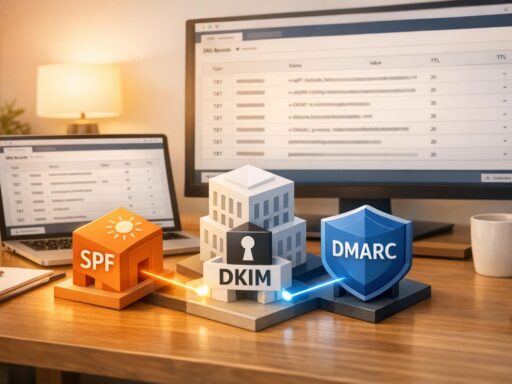
A custom tracking domain replaces generic tracking links in emails (e.g., bml.co) with a branded subdomain like track.yourdomain.com. This improves email deliverability, builds trust, and protects your sender reputation. Here’s why it matters:
- Better Deliverability: Aligning your tracking domain with your sender domain helps pass spam filters and DMARC checks.
- Brand Trust: Branded links look familiar and professional, reducing the chance of emails being flagged as spam.
- Reputation Control: Avoid issues caused by shared domains, which are vulnerable to misuse by other senders.
To set it up, you’ll need to configure a CNAME record for your subdomain and ensure DNS settings like SPF, DKIM, and DMARC are correct. Avoid common mistakes like typos in DNS records or sudden spikes in email volume, which can harm your domain’s reputation. Tools like Zapmail simplify this process by automating configurations and monitoring domain health.
Custom tracking domains are essential for cold email success and maintaining a strong sender reputation. Proper setup and monitoring can ensure your emails reach the inbox, not the spam folder.
What’s a custom tracking domain & how to set it up
Why Use a Custom Tracking Domain
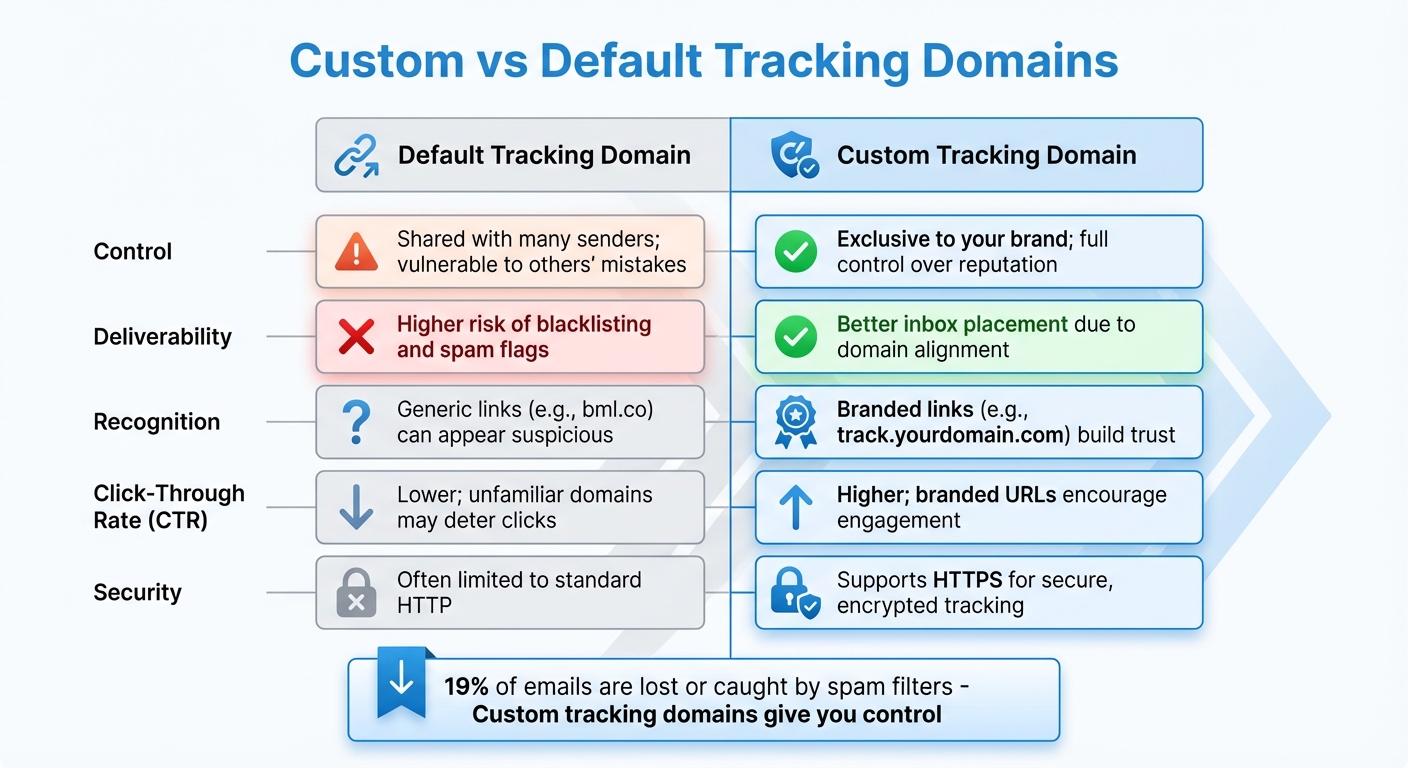
Custom vs Default Tracking Domains: Key Differences for Email Deliverability
Opting for a custom tracking domain brings three major advantages: improved control over your email reputation, enhanced brand visibility, and better email deliverability. These factors are critical in determining whether your emails land in the inbox or are flagged as spam. Let’s break down how these benefits work together to improve your email campaigns.
Better Deliverability and Reputation Control
Custom tracking domains give you control over your sender reputation by isolating it from others. Shared tracking domains, which are standard on many email platforms, can expose you to risks caused by other users’ bad practices. If someone using the same shared domain sends spam, it can damage the domain’s reputation, potentially affecting your campaigns too.
About 1 in 7 marketing emails fail to reach the inbox, and shared tracking domains are often part of the problem. Providers like Gmail are quick to flag links if the tracking domain changes unexpectedly or doesn’t align with your sender domain. By using a custom domain like track.yourdomain.com, you maintain consistency and demonstrate authenticity, making it easier to pass spam filters.
As BigMailer explains:
"A custom tracking host makes it look like the tracking links are hosted on your site and thus makes your emails look more authentic."
Beyond improving deliverability, a custom domain also strengthens your brand’s credibility.
Stronger Brand Trust and Recognition
When recipients hover over links in your emails, they notice the domains. Generic tracking domains like bml.co or bigmailer.link may seem unfamiliar and raise doubts. On the other hand, a branded domain like links.yourbrand.com reinforces your identity and builds trust – not just with readers but also with spam filters.
If your email ends up in spam because of a suspicious-looking link, you risk losing that recipient for good. A custom domain can help prevent that by making your links instantly recognizable.
Custom vs Default Tracking Domains
Here’s a side-by-side comparison of custom and default tracking domains for cold email campaigns:
| Feature | Default Tracking Domain | Custom Tracking Domain |
|---|---|---|
| Control | Shared with many senders; vulnerable to others’ mistakes | Exclusive to your brand; full control over reputation |
| Deliverability | Higher risk of blacklisting and spam flags | Better inbox placement due to domain alignment |
| Recognition | Generic links (e.g., bml.co) can appear suspicious |
Branded links (e.g., track.yourdomain.com) build trust |
| CTR | Lower; unfamiliar domains may deter clicks | Higher; branded URLs encourage engagement |
| Security | Often limited to standard HTTP | Supports HTTPS for secure, encrypted tracking |
Considering that around 19% of emails are either lost or caught by spam filters, having a custom tracking domain gives you more control over your email strategy. It’s a simple step that can make a big difference in ensuring your messages reach their intended audience.
How to Set Up a Custom Tracking Domain with Zapmail
Getting your custom tracking domain up and running in Zapmail takes just a few minutes. Once you add your CNAME record, the platform automatically configures essential DNS records for you. With the basics sorted, here’s how to set everything up.
What You Need Before Starting
Before diving in, make sure you’ve got the following in place:
| Requirement | Details |
|---|---|
| Domain Ownership | A domain that’s either purchased through or connected to Zapmail |
| Active Mailbox | At least one mailbox created on the domain |
| Nameserver Pointing | Nameservers must point to Zapmail (automatically locked for domains bought via Zapmail) |
| Account Level | Starter plan or higher ($39/month) |
| Record Details | Host/Name and Value/Address for your CNAME record |
For domains purchased through Zapmail, the nameservers are locked and managed automatically, so you’re protected from accidental changes that might disrupt your setup.
If you plan to use a subdomain for tracking – like track.yourdomain.com – make sure you have the correct CNAME details provided by your outreach tool. This ensures your tracking links maintain a professional appearance.
Configuration Steps
Here’s how to set up your custom tracking domain:
- Log in to Zapmail: Navigate to the "Domains" section and select your domain. Head to "DNS Records" to add a new CNAME record.
- Add the CNAME Record:
- Choose CNAME as the record type.
- In the "Host/Name" field, enter your subdomain (e.g.,
trackoremail). - In the "Value/Address" field, paste the tracking host provided by your outreach tool. Ensure these values are entered exactly as instructed.
- Save Your Changes: Click the checkmark to save. Zapmail will instantly add the record and start monitoring its status.
While DNS propagation usually takes a few minutes, it can sometimes stretch to a few hours, depending on your domain’s TLD. Once verified, your custom tracking domain will be live and ready to use.
Zapmail Features That Simplify Setup
Zapmail offers tools that make managing your domain a breeze. With an average deliverability rate of 95%, it’s designed to optimize your email performance.
- Automated DNS Management: Forget about manually setting up SPF, DKIM, or DMARC. Zapmail takes care of these settings for you, reducing the chance of errors.
- Domain Health Monitoring: ZapShield keeps an eye on your domain’s health during sending and tracking, flagging potential issues before they impact your campaigns.
- Workspace Isolation: Each domain is tied to a single workspace, so problems with one domain won’t spill over into other campaigns.
Need additional tracking domains? The Instant Domain Genie can find brand-ready domains in seconds, making it easy to scale your email infrastructure.
As Enoch Chang, Co-Founder of Cymate, explains:
"Instant email infra setup (SPF/DKIM/DMARC, routing, masking) zero human error, all done by software."
sbb-itb-36f7bf9
Mistakes to Avoid
Even minor missteps in setting up your custom tracking domain can hurt your email deliverability. Here’s what to keep an eye on and how to steer clear of common pitfalls.
DNS Configuration Errors
A single typo in your CNAME record or mistakenly using your root domain instead of a dedicated subdomain (like track.yourdomain.com) can break tracking links and negatively impact your domain’s reputation. Always double-check every character before saving your settings.
Make sure you’re using only one SPF record for all authorized senders. Having multiple SPF records often leads to authentication failures, and around 80% of companies make this mistake.
As Matthew Vernhout from Email Industries warns:
"DNS is fragile. It’s a ‘set it and forget it’ system – until something goes wrong. And when it does, the consequences are immediate and painful."
DNS changes can take 24–48 hours to propagate. To speed up the process, temporarily lower your TTL (Time to Live) to 300 seconds before making changes, then reset it after everything is verified.
These DNS errors can harm your domain’s reputation, which can lead to even bigger issues, as detailed below.
Domain Reputation and Blacklisting
The reputation of your custom tracking domain is closely tied to your root domain. If there’s a compliance failure at the root level, it can hurt deliverability for all associated subdomains.
To protect your reputation, start small. Send 10–20 emails daily to your most engaged contacts, then gradually increase your volume by 25% to 100% each day over the course of 4–8 weeks. Sudden spikes in email volume are one of the main reasons domains get blacklisted.
Google has strict spam rate limits – your spam rate must stay below 0.10%. If it hits 0.30% or higher, you risk immediate delivery rejection. Use Google Postmaster Tools to monitor your Compliance Status and Spam Rate dashboards. High levels of “5xx-level” delivery errors signal that Google is actively rejecting your emails.
For cold outreach, stay under Gmail’s radar by limiting daily sends to fewer than 50 emails per inbox. Ricky Pearl, Founder of POINTER, explains:
"Gmail and other email services know exactly how many emails a typical user sends per day. So it’s incredibly simple for Gmail to see who is standing out from the crowd… you should keep your daily sending limit below 50 emails per inbox."
Spam Filter Triggers
In addition to DNS missteps and reputation issues, poorly configured settings can activate spam filters, further harming your deliverability.
Make sure your tracking and sending domains are properly aligned to pass DMARC checks. Misalignment or incorrect DMARC settings – like omitting the mailto: in the rua tag – can trigger spam filters. Also, keep a balanced link-to-text ratio in your emails to avoid being flagged as spam.
Low engagement rates can also damage your tracking domain’s reputation. If recipients aren’t clicking your links or, worse, are marking your emails as spam, mailbox providers will take notice and adjust your deliverability accordingly. Valimail emphasizes:
"If your recipients aren’t engaging with your emails or are marking them as spam, mailbox providers will take notice and adjust your deliverability accordingly."
Finally, sending emails to spam traps – addresses designed to catch spammers – can result in immediate blacklisting. Use email verification tools to clean up your list and remove invalid addresses before hitting send.
Another common issue is missing or incorrect PTR (Reverse DNS) records, which are responsible for nearly 80% of email delivery failures.
Best Practices for Custom Tracking Domains
To maintain high deliverability and safeguard your domain’s reputation as you grow, it’s essential to follow these strategies. These steps build on the initial setup to ensure long-term success.
Match Your Sending and Tracking Domains
Your tracking domain should align closely with your sending domain. For instance, if your sending address is marketing.yourdomain.com, your tracking domain should look something like track.marketing.yourdomain.com. This setup ensures proper authentication for SPF, DKIM, and DMARC protocols.
Why does this matter? When your tracking links match your sender address, inbox providers see consistency, which reduces the chances of being flagged as spam. On the other hand, mismatched domains can raise suspicion and trigger spam filters.
Also, make sure your CNAME records are correctly configured to avoid any DNS-related delays.
Monitor Your Domain Reputation
Beyond setting up DNS records accurately, keeping an eye on your domain’s reputation is crucial. Tools like Google Postmaster Tools can help you track your domain’s standing, spam rates, and authentication performance. To use it, you’ll need to verify ownership by adding a DNS TXT record. Once verified, you’ll gain insights into how Gmail perceives your domain.
Another useful tool is MXToolbox, which checks if your domain appears on public blocklists. Regular checks – ideally weekly – can help you catch and address blacklisting issues early.
Here’s a critical metric to watch: keep your user-reported spam rate below 0.10%. If it hits 0.30% or higher, Gmail may start rejecting your emails outright. To stay ahead, conduct weekly placement tests by sending emails to seed accounts at providers like Gmail, Outlook, and Yahoo. This helps ensure your tracking links aren’t causing deliverability issues.
| Tool | Primary Function | Key Metric to Watch |
|---|---|---|
| Google Postmaster Tools | Reputation tracking for Gmail | Domain Reputation (Bad, Low, Medium, High) |
| MXToolbox | Blocklist and DNS monitoring | Blacklist status and SPF/DKIM validity |
| Glockapps | Placement testing | Inbox vs. Spam folder percentage |
Maintain and Scale Your Setup
Once you’ve established a reliable setup, scaling requires careful planning. Before ramping up your email volume, expand your infrastructure to handle the load. Teams that use multiple inboxes and domains often achieve over 90% inbox placement rates, while those that don’t may see rates drop below 50%.
To protect your reputation during scaling, rotate subdomains to isolate any flagged issues. Stick to a daily sending limit of 50 emails per inbox, which includes both outreach and warmup emails.
For a smoother scaling process, tools like Zapmail offer pre-warmed mailboxes and automated DNS configurations. This allows you to scale without compromising deliverability. When adding new subdomains, let them age for 30–60 days before gradually warming them up over 4–8 weeks.
Finally, regularly review bounce messages for SMTP error codes like 421 or 550, which can signal reputation problems. Using email verification tools to clean your lists is also vital – keeping your bounce rate below 2% will help maintain strong deliverability.
Conclusion
Setting up a custom tracking domain isn’t just a technical task – it’s a key step in protecting your sender reputation and ensuring your emails avoid spam folders. As we’ve covered, branded tracking links that align with your sending domain not only safeguard your reputation but also reduce the likelihood of triggering "suspicious link" warnings in platforms like Gmail and Outlook.
Accurate setup is critical. Make sure your tracking domain matches your sender address, and configure SPF, DKIM, and DMARC records properly, as outlined earlier. Regularly monitor your domain to avoid blocklist issues and address potential problems before they affect your email deliverability.
Zapmail streamlines this entire process by automating DNS configurations, providing pre-warmed mailboxes, and offering centralized tools to manage everything – saving you the hassle of manual setup. What might take 30 minutes or more to configure manually is handled seamlessly in the background.
By setting up your custom tracking domain correctly, keeping a close eye on your reputation, and scaling your campaigns carefully while maintaining a spam rate below 0.3%, you can build a strong sender reputation. This combination ensures your emails consistently land in the primary inbox, enabling successful cold email campaigns.
FAQs
What are the benefits of using a custom tracking domain for email deliverability?
Using a custom tracking domain allows you to align your tracking links with your brand’s domain, giving them a more professional and trustworthy appearance. This not only reassures recipients but also signals reliability to email providers, reducing the chances of your emails being marked as spam.
This added layer of trust can significantly improve your sender reputation, boosting the likelihood of your emails landing in the inbox rather than the junk folder. It’s a straightforward yet impactful way to improve deliverability and maximize the success of your email campaigns.
What mistakes should I avoid when setting up a custom tracking domain?
When setting up a custom tracking domain, there are a few pitfalls you’ll want to steer clear of to keep everything running smoothly:
- Misconfigured CNAME records: Double-check that your CNAME record is correctly pointing to your provider’s tracking endpoint. For instance,
mail.yourdomain.comshould lead to the exact URL provided. If it’s set up wrong – or worse, missing entirely – it can disrupt click and open tracking. - Overlooking tracking settings: A custom domain won’t do much good if tracking features like "Track Opens" or "Track Clicks" aren’t enabled in your platform. Make sure these are turned on.
- Relying on unstable or generic subdomains: Stick with a branded, consistent subdomain for your tracking links. Using generic or frequently changing subdomains can set off spam filters or trigger warnings in email clients.
- Skipping DNS checks: Once your CNAME is set up, don’t forget to verify it and run regular DNS health checks. This helps you catch any issues that might impact deliverability or tracking.
- Failing to link the domain to the right sender: After verifying your custom domain, ensure it’s assigned to the correct sender. If not, your emails might still use the default provider domain, which undermines the branding advantages you’re aiming for.
By sidestepping these common mistakes, you’ll ensure your custom tracking domain operates smoothly, boosts deliverability, and strengthens your email campaigns.
How can I effectively monitor and maintain my domain’s reputation?
Monitoring and safeguarding your domain’s reputation takes consistent attention. Start by leveraging reputation-checking tools to keep an eye on key metrics like spam rates, blacklist status, and overall domain health. Make it a habit to review your SPF, DKIM, and DMARC configurations regularly – missteps here can seriously impact your reputation. It’s also wise to set up alerts for red flags, such as complaint rates exceeding 0.1% or bounce rates climbing above 2%, so you can tackle problems before they escalate.
Keeping your reputation intact means maintaining steady email-sending patterns and avoiding sudden spikes in volume. Regularly clean your email list by removing hard bounces and inactive addresses within 30 days of failed delivery attempts. To shield your primary domain, consider using a dedicated subdomain for outreach activities. If your domain does end up on a blacklist, act quickly to resolve the issue and request removal. With a combination of proactive monitoring and disciplined email practices, you’ll be better equipped to protect your domain’s reputation and boost email deliverability.